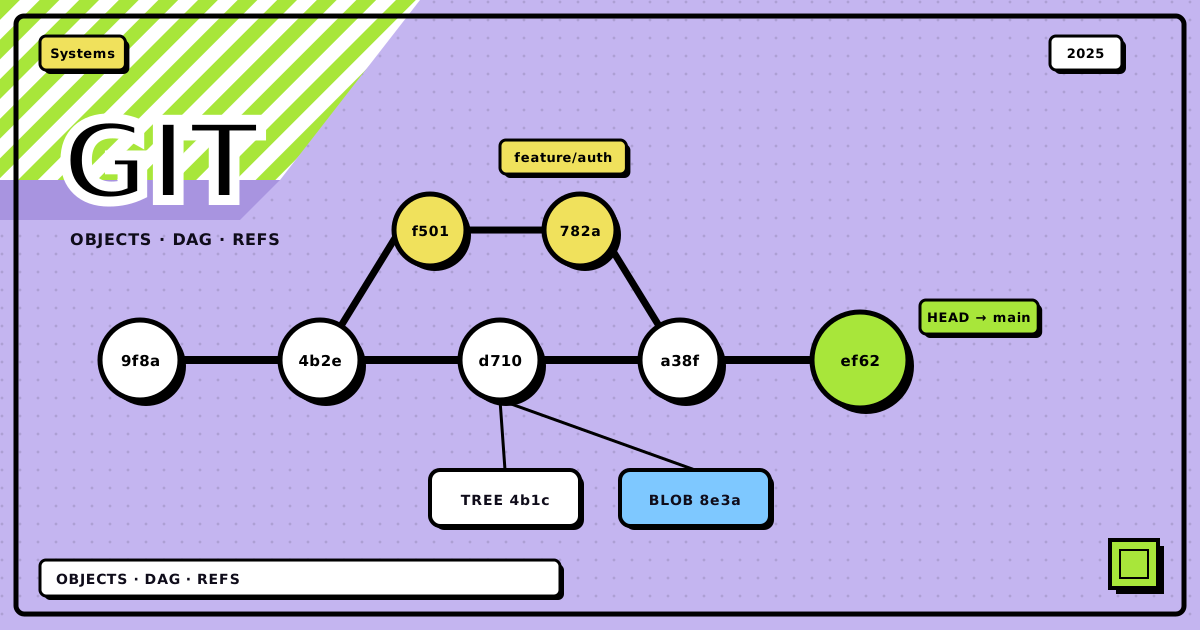
A few months back I was cleaning up commits before opening a PR. Ran git rebase -i HEAD~12, fat-fingered a drop on the wrong line, and watched an entire feature vanish from git log. My stomach actually dropped for a second. Then I remembered something: git doesn’t delete anything the moment you think it does. git reflog, find the orphaned commit, git cherry-pick it back into existence, done. Five minutes, no data lost. That’s the moment git internals stopped being trivia for me and started being the thing that saves my ass.
The reason reflog could save me is the same reason git is cheap to branch on and mostly safe to experiment with: it never edits anything in place. It writes new immutable objects and moves lightweight pointers around. Everything else, branches, merges, rebases, is a variation on that one trick. Here’s the whole shape of it:
flowchart TD
    WD["working directory<br/>the files you're editing"]
    IDX["index / staging area<br/>.git/index"]
    BLOB["blob object<br/>raw file contents, SHA-1 addressed"]
    TREE["tree object<br/>directory listing: names + modes + hashes"]
    COMMIT["commit object<br/>tree + parent(s) + author + message"]
    REF["refs · branches & HEAD<br/>.git/refs/heads/*, .git/HEAD"]

    WD -->|"git add"| IDX
    IDX -->|"git commit"| COMMIT
    COMMIT --> TREE
    TREE --> BLOB
    TREE -->|"nested directory"| TREE
REF -->|"points at"| COMMITobjects: the immutable building blocks#
Under the hood, git is a content-addressable database of four object types, each named by the SHA-1 hash of its own content. Change one bit anywhere in an object and its hash changes, which is exactly why tampering or corruption shows up immediately instead of quietly.
A blob is the exact bytes of one file, nothing else. No filename, no path, no permissions, just content. Two files with identical contents anywhere in your repo, even in totally different directories, are the same blob. Git only ever stores that content once.
A tree is a directory listing. It points at a set of blobs and other trees, each with a name, a file mode, and a hash. When git nests a subdirectory, that’s just a tree pointing at another tree. Walk a commit’s tree recursively and you’ve reconstructed the entire project at that snapshot.
A commit points at exactly one tree, the complete state of the project at that moment, plus the author, the committer, a message, and one or more parent commits. That last part is what makes history a graph rather than a list: a normal commit has one parent, the first commit in a repo has zero, and a merge commit has two.
A lightweight tag is nothing more than a ref, a name pointing at a commit. An annotated tag is an actual object: it stores the tagger, a date, a message, and a pointer to the commit it marks. That’s the difference between “someone typed a label” and “there’s a signed, dated record of a release.”
refs: pointers into that graph#
Objects are immutable, but you need something that moves. That’s what refs are: plain files under .git/refs holding a commit’s SHA-1.
A branch, main, feature-x, whatever, is a lightweight, movable pointer to a commit. Commit on that branch and the pointer walks forward to the new commit automatically. HEAD is the special one: it’s a symbolic ref pointing at whichever branch you currently have checked out. Run git checkout feature-x and HEAD now points at refs/heads/feature-x; commit, and the branch HEAD points to moves forward with it.
branching is just a pointer copy#
Given that model, branching is almost embarrassingly cheap. When you run git branch new-feature:
-
Git looks at the commit your current
HEADpoints to. -
It writes a new file,
refs/heads/new-feature, holding that exact same commit hash.
That’s the entire operation. No file copying, no snapshotting a second time, just a new pointer sitting next to an existing one. When you then git checkout new-feature, git moves HEAD to point at that ref and rewrites your working directory to match the commit it names.
      A -- B -- C (main)
           ^
           |
           D -- E (new-feature)
           ^
           |
          HEAD (after checkout new-feature)
As you keep committing on new-feature, its pointer keeps moving forward while main sits still at its last commit. That’s the whole mechanism behind branches diverging: two pointers walking away from each other over the same object graph.
merging: joining two histories#
Eventually those diverged lines need to come back together, and git handles that one of two ways depending on shape.
fast-forward merge#
If main hasn’t moved since feature-x branched off it, main is literally an ancestor of feature-x. There’s nothing to reconcile. Git just slides the main pointer forward to wherever feature-x is. No new commit gets created, because none is needed.
      A -- B (main)
            \
             C -- D (feature-x)

      # git checkout main
      # git merge feature-x

      A -- B -- C -- D (main, feature-x)
three-way merge#
If both branches have moved since they diverged, git can’t just slide a pointer. It has to actually reconcile two different sets of changes.
-
Find the common ancestor commit of the two branches.
-
Work out what changed on the target branch since that ancestor.
-
Work out what changed on the source branch since that ancestor.
-
Try to combine both sets of changes.
-
Write a new merge commit with two parents, the tips of both branches, and a tree representing the combined result.
      A -- B -- C (main)
            \      \
             D -- E -- M (merge commit)
                     /
                   F -- G (feature-x)

      # git checkout main
# git merge feature-xWhen git can’t automatically combine two changes to the same lines, it stops and marks a merge conflict instead of guessing. You resolve it by hand in the affected files, git add the result, and commit. There’s no silent “pick one side” behavior, which is exactly what you want from something managing your entire history.
rebasing: replaying commits instead of merging them#
Rebase solves the same problem, diverged branches, differently. Instead of creating a merge commit that records both parents, it rewrites your branch’s history so it looks like it started later than it did.
Running git rebase main from feature-x does this:
-
Find the common ancestor of
feature-xandmain. -
Collect every commit on
feature-xthat isn’t onmainyet, and set them aside. -
Rewind
feature-xback to that common ancestor. -
Move the
feature-xpointer to the tip ofmain. -
Replay the saved commits one by one on top of that new base. Each replayed commit is a brand-new commit object with a new SHA-1.
      A -- B -- C (main)
            \
             D -- E (feature-x)

      # git checkout feature-x
      # git rebase main

      A -- B -- C -- D' -- E' (feature-x)
                  ^
                  |
                 (main)
D' and E' carry the same diffs as D and E, but their parent is now C instead of B. Different parent means different hash, full stop, even though nothing about the actual code changed.
That’s exactly the mechanism that ate my feature branch at the start of this post. drop in an interactive rebase just means “don’t replay this one,” and the original commit object doesn’t stop existing, it just stops being reachable from any ref. git reflog still remembers where HEAD pointed a moment ago, which is how I got it back.
merge
Preserves history exactly as it happened. Creates a merge commit that shows the divergence and the join. Good default for landing feature branches into a shared branch you don’t control alone.
rebase
Rewrites commits onto a new base so history reads as a straight line. Good for tidying up your own branch before it’s ever shared. No merge-commit noise, but the commits are literally different objects afterward.
Don’t rebase commits that have already been pushed and that someone else might have pulled. Rebase creates new commit objects, so anyone whose work is based on the old ones now has a branch that’s diverged from a history that technically no longer exists upstream. Their next pull turns into a mess of duplicate-looking commits and manual reconciliation. Rebase local, unpushed work, or branches you’re certain nobody else has touched. That’s it.
the mental model, compressed#
what to remember when you're about to touch history
- Everything git stores is immutable and content-addressed: same content, same hash, same object, forever
- Branches and HEAD are just files holding a commit hash, not copies of anything
- A fast-forward merge moves a pointer; a three-way merge writes a new commit with two parents
- Rebase replays commits as new objects with new hashes, same diffs, different parent
- Never rebase a branch other people have already pulled from
- If something disappears that shouldn’t have, check
git reflogbefore you panic
bottom line
Git feels intimidating until you see that it’s really just two things stacked on top of each other: an immutable, hash-addressed object store (blobs, trees, commits, tags), and a thin layer of mutable pointers (branches, HEAD, tags) that point into it. Branching is cheap because it’s one pointer. Merging and rebasing are both just different ways of building new commits on top of that graph. Nothing gets destroyed until you explicitly garbage-collect unreachable objects, which is why reflog exists as a safety net for exactly the kind of mistake I made.
next time a rebase goes sideways, don’t panic, just go check reflog first.
Discussion
0Leave a comment