Browser Automation Tools
This page documents the browser automation tool system implemented in the browser extension's background script. These tools provide programmatic control over browser tabs, DOM elements, and page state, enabling AI agents to interact with web pages. For information about the React Agent that uses these tools, see Agent Tool System. For the browser extension backend service, see Extension Backend Service.
System Overview
The browser automation tools are implemented in TypeScript within the extension's background service worker. The system provides 27+ distinct tools organized into six categories: DOM manipulation, tab/window control, information extraction, storage/cookies, navigation, and advanced interactions. All tools execute through the executeAgentTool dispatcher function which routes action types to specific handler implementations.
Tool Categories and Capabilities
The following table summarizes all available automation tools:
| Category | Tool Name | Action Type | Purpose |
|---|---|---|---|
| Information Extraction | Get Page Info | GET_PAGE_INFO |
Extract page metadata, interactive elements, media presence |
| Extract DOM | EXTRACT_DOM |
Build structured DOM tree with selectors | |
| Get Element Text | GET_ELEMENT_TEXT |
Retrieve text content from specific element | |
| Get Element Attributes | GET_ELEMENT_ATTRIBUTES |
Fetch all attributes from element | |
| Find Elements | FIND_ELEMENTS |
Query multiple elements with detailed info | |
| Get All Tabs | GET_ALL_TABS |
List all open browser tabs | |
| Screenshot | SCREENSHOT |
Capture visible page area | |
| DOM Manipulation | Click | CLICK |
Click element by selector |
| Type | TYPE |
Input text into fields (supports contenteditable) | |
| Fill Form | FILL_FORM |
Populate multiple form fields at once | |
| Select Dropdown | SELECT_DROPDOWN |
Choose dropdown option | |
| Hover | HOVER |
Trigger hover state on element | |
| Scroll | SCROLL |
Scroll page or to specific element | |
| Wait for Element | WAIT_FOR_ELEMENT |
Poll for element visibility | |
| Tab/Window Control | Open Tab | OPEN_TAB |
Create new tab with URL |
| Close Tab | CLOSE_TAB |
Close current or specified tab | |
| Switch Tab | SWITCH_TAB |
Change active tab by ID or direction | |
| Navigate | NAVIGATE |
Load URL in current/specified tab | |
| Reload Tab | RELOAD_TAB |
Refresh page with optional cache bypass | |
| Duplicate Tab | DUPLICATE_TAB |
Clone existing tab | |
| Navigation | Go Back | GO_BACK |
Navigate to previous page in history |
| Go Forward | GO_FORWARD |
Navigate to next page in history | |
| Storage/Cookies | Get Cookies | GET_COOKIES |
Retrieve cookies for URL/domain |
| Set Cookie | SET_COOKIE |
Create or update cookie | |
| Get Local Storage | GET_LOCAL_STORAGE |
Read localStorage items | |
| Set Local Storage | SET_LOCAL_STORAGE |
Write to localStorage | |
| Advanced | Execute Script | EXECUTE_SCRIPT |
Run arbitrary JavaScript code |
Message Dispatch Architecture
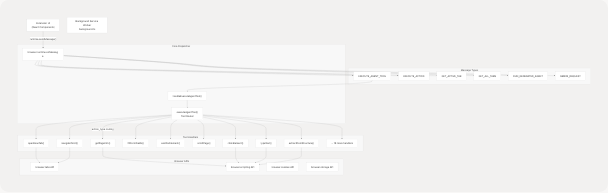
The message dispatch system uses the browser.runtime.onMessage listener to handle six primary message types. The EXECUTE_AGENT_TOOL message type is the primary entry point for AI agents, routing through handleExecuteAgentTool to executeAgentTool, which contains a 27-case switch statement mapping action types to specific tool implementations.
DOM Manipulation Tools
Click Element Tool
The clickElement function locates elements via CSS selectors and triggers click events. It supports optional click count for double/triple clicks and click modifiers (Ctrl, Alt, Shift, Meta).
Implementation: extension/entrypoints/background.ts1157-1177
// Simplified structure
async function clickElement(tabId: number, params: any) {
  return await browser.scripting.executeScript({
    target: { tabId },
    func: (selector: string, count: number, modifiers: any) => {
      const el = document.querySelector(selector);
      // Triggers multiple clicks with modifiers
      for (let i = 0; i < count; i++) {
        (el as HTMLElement).click();
      }
    },
    args: [params.selector, params.count || 1, params.modifiers]
  });
}
Type Text Tool
The typeText function handles text input for standard inputs, textareas, and contenteditable elements. It includes special handling for React/framework-driven inputs by dispatching multiple event types.
Key Features:
- Supports contenteditable elements (e.g., ChatGPT prompt box)
- Triggers input, change, keydown, and keyup events
- Auto-focuses target element before typing
Implementation: extension/entrypoints/background.ts1179-1243
// Handles three element types:
// 1. contenteditable elements: sets innerText/textContent
// 2. input/textarea: sets value property
// 3. other elements: fallback to value property
Fill Form Fields Tool
The fillFormFields function populates multiple form inputs in a single operation. It accepts a mapping of CSS selectors to values and processes them sequentially.
Example Payload:
{
  "fields": {
    "#email": "user@example.com",
    "#password": "secretpass",
    "#age": "25"
  }
}
Implementation: extension/entrypoints/background.ts1245-1308
Wait for Element Tool
The waitForElement function polls for element visibility with configurable timeout and interval. Returns success when element appears or timeout error after maximum wait time.
Parameters:
selector: CSS selector to wait fortimeout: Maximum wait time in milliseconds (default: 10000)interval: Polling interval in milliseconds (default: 100)
Implementation: extension/entrypoints/background.ts1335-1375
Scroll Page Tool
The scrollPage function provides directional scrolling and element-targeting scroll. Supports four modes: up, down, top, bottom, plus scroll-to-element.
Implementation: extension/entrypoints/background.ts1377-1407
Tab and Window Control Tools
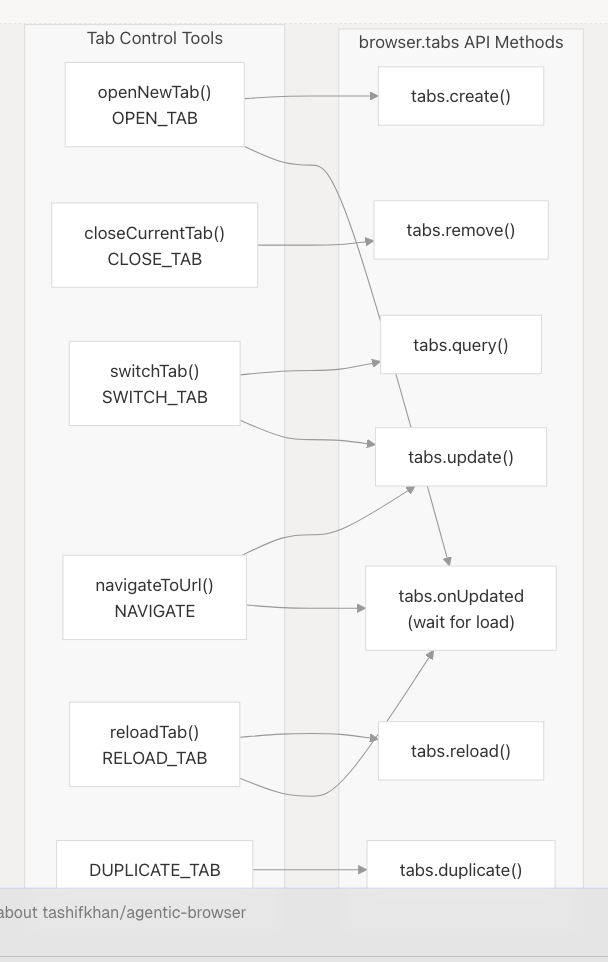
Open Tab Tool
Creates a new browser tab with specified URL and activation state. Waits for tab load completion if URL is provided and tab is active.
Parameters:
url: Target URL (optional, defaults to "about:blank")active: Whether to activate new tab (default: true)
Implementation: extension/entrypoints/background.ts1409-1436
Switch Tab Tool
Changes the active tab either by tab ID or relative direction (next/previous). Direction-based switching cycles through tabs in current window.
Parameters:
tabId: Specific tab ID to activate (optional)direction: "next" or "previous" for relative switching (optional)
Implementation: extension/entrypoints/background.ts1449-1484
Navigate Tool
Loads a URL in the current or specified tab and waits for navigation completion using the tabs.onUpdated listener with status "complete" detection.
Implementation: extension/entrypoints/background.ts1486-1523
Information Extraction Tools
Get Page Info Tool
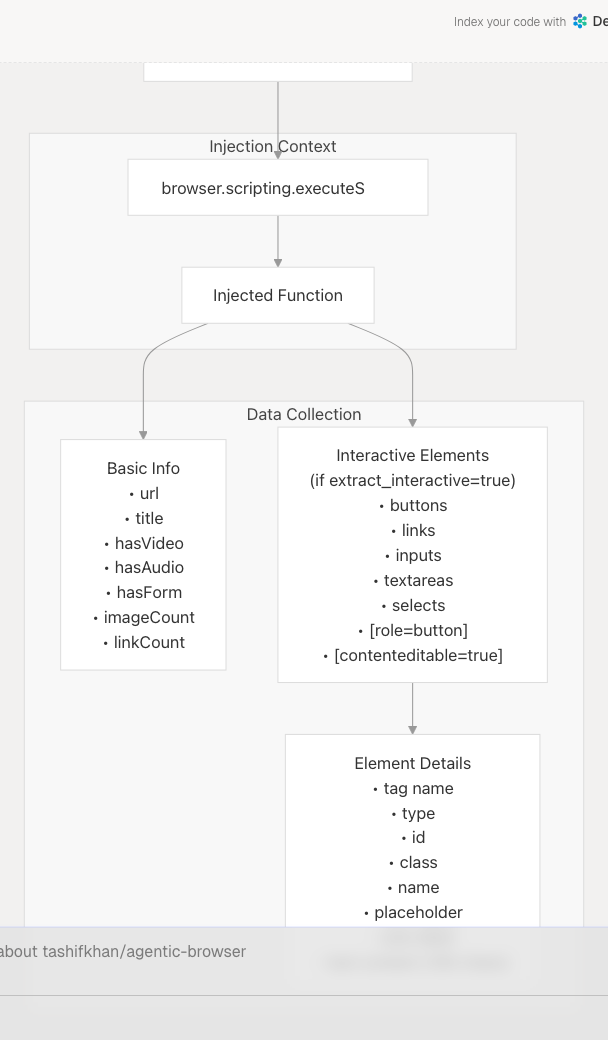
The getPageInfo tool extracts comprehensive page metadata including media presence, element counts, and optionally a list of interactive elements with their attributes. Limits interactive element extraction to 50 items for performance.
Parameters:
include_dom: Whether to include DOM structure (not fully implemented)extract_interactive: Whether to extract interactive element details
Implementation: extension/entrypoints/background.ts1030-1070
Extract DOM Structure Tool
The extractDomStructure function builds a hierarchical tree representation of page DOM, including element tags, IDs, classes, and text content. Implements depth limiting to prevent excessive data collection.
Parameters:
max_depth: Maximum tree depth (default: 5)include_text: Whether to include text content
Return Structure:
{
  "success": true,
  "dom": {
    "tag": "body",
    "id": "",
    "classes": ["main-content"],
    "text": "...",
    "children": [...]
  }
}
Implementation: extension/entrypoints/background.ts1072-1155
Get Element Text Tool
Retrieves the text content of a specific element via CSS selector. Returns innerText (visible text) if available, falling back to textContent.
Implementation: extension/entrypoints/background.ts1562-1581
Get Element Attributes Tool
Extracts all attributes from a target element, returning them as a key-value object along with the element's tag name.
Return Example:
{
  "success": true,
  "tag": "input",
  "attributes": {
    "type": "text",
    "id": "username",
    "class": "form-control",
    "placeholder": "Enter username"
  }
}
Implementation: extension/entrypoints/background.ts1583-1611
Find Elements Tool
The findElements function queries for multiple elements matching a selector and returns detailed information about each (tag, text, attributes, computed style).
Parameters:
selector: CSS selectorlimit: Maximum elements to return (default: 50)
Implementation: extension/entrypoints/background.ts1809-1879
Get All Tabs Tool
Lists all open browser tabs with their IDs, URLs, titles, and active state.
Implementation: extension/entrypoints/background.ts1525-1544
Screenshot Tool
Captures the visible area of a tab using browser.tabs.captureVisibleTab. Returns a base64-encoded PNG image.
Implementation: extension/entrypoints/background.ts1546-1560
Storage and Cookie Tools
Cookie Management
The cookie tools provide CRUD operations for browser cookies:
Get Cookies (GET_COOKIES): Retrieves all cookies for a specified URL or domain. Uses browser.cookies.getAll().
Set Cookie (SET_COOKIE): Creates or updates a cookie with specified name, value, domain, path, and expiration. Uses browser.cookies.set().
Implementation: extension/entrypoints/background.ts1634-1669
Local Storage Tools
The local storage tools execute scripts in page context to access window.localStorage:
Get Local Storage (GET_LOCAL_STORAGE): Retrieves specific key or all localStorage items.
Set Local Storage (SET_LOCAL_STORAGE): Writes key-value pairs to localStorage.
Implementation: extension/entrypoints/background.ts1671-1713
Navigation History Tools
Go Back and Go Forward
These tools manipulate browser history using window.history API:
Go Back (GO_BACK): Navigates to previous page via history.back().
Go Forward (GO_FORWARD): Navigates to next page via history.forward().
Both tools wait 500ms after navigation for page load.
Implementation: extension/entrypoints/background.ts1773-1807
Advanced Tools
Execute Custom Script Tool
The executeCustomScript function allows arbitrary JavaScript execution in page context. The script parameter is wrapped in an async function for flexibility.
Security Note: This tool should be used carefully as it can execute any code in the page context.
Parameters:
script: JavaScript code string to execute
Implementation: extension/entrypoints/background.ts1613-1632
Hover Element Tool
Simulates mouse hover by dispatching mouseover and mouseenter events on the target element.
Implementation: extension/entrypoints/background.ts1715-1741
Select Dropdown Tool
Handles <select> dropdown elements by setting the value and triggering change events. Supports both value and text-based selection.
Implementation: extension/entrypoints/background.ts1310-1333
Tool Execution Flow
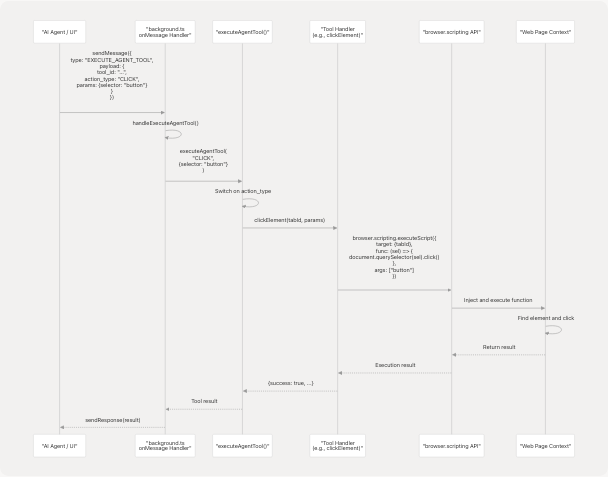
All tools follow a consistent execution pattern: the background script receives a message, routes it through the dispatcher, invokes the appropriate handler, and uses browser.scripting.executeScript or tab APIs to perform the action. Most DOM manipulation tools inject functions into the page context for direct element access.
Action Execution for Generated Plans
The background script also supports executing complete action plans generated by the Browser Use Agent (see Browser Use Agent and Script Generation). The handleRunGeneratedAgent function processes action arrays sequentially:
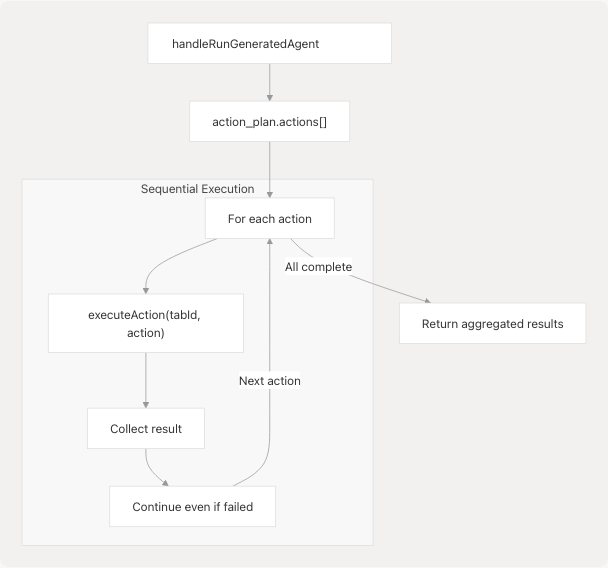
The executeAction function (lines 541-826) handles both tab control actions (OPEN_TAB, CLOSE_TAB, NAVIGATE, etc.) and DOM actions (CLICK, TYPE, SCROLL, etc.). This dual-purpose handler supports both direct agent tool invocation and action plan execution.
Implementation: extension/entrypoints/background.ts541-826
Integration with Browser Use Agent
The browser automation tools integrate with the Python backend's Browser Use Agent through the browser_action_agent tool:
Tool Definition: tools/browser_use/tool.py1-49
# Simplified structure
async def _browser_action_tool(
    goal: str,
    target_url: str = "",
    dom_structure: Dict[str, Any] = {},
    constraints: Dict[str, Any] = {},
) -> Dict[str, Any]:
    service = AgentService()
    result = await service.generate_script(...)
    return result

browser_action_agent = StructuredTool(
    name="browser_action_agent",
    description="Generate a JSON action plan to key elements...",
    coroutine=_browser_action_tool,
    args_schema=BrowserActionInput,
)
The agent generates a JSON action plan (see Browser Use Agent and Script Generation) which the extension executes through the RUN_GENERATED_AGENT message type. This creates a bridge between AI planning (Python backend) and execution (TypeScript extension).
Error Handling and Validation
All tool handlers wrap their execution in try-catch blocks and return standardized response objects:
// Success response
{
  success: true,
  data: { /* tool-specific data */ },
  message: "Action description"
}

// Error response
{
  success: false,
  error: "Error message",
  stack: "Error stack trace" // in development
}
Element-not-found errors are the most common failure case for DOM manipulation tools. The system throws descriptive errors including the selector used to help with debugging.