Login & OAuth
This document describes the login and OAuth authentication mechanisms in TalentSync, including credentials-based login, Google OAuth, and GitHub OAuth flows. It covers the NextAuth integration, session creation, and the email verification gate that prevents unverified users from accessing the application.
For information about user registration and email verification, see Registration & Email Verification. For password reset functionality, see Password Reset Flow. For middleware-based route protection, see Middleware & Route Protection.
Authentication Methods Overview
TalentSync supports three authentication methods, all implemented through NextAuth:
| Method | Provider | User Experience | Email Verification Required |
|---|---|---|---|
| Email/Password | credentials |
Manual form entry | Yes |
| Google OAuth | google |
One-click sign-in | No (OAuth providers are pre-verified) |
| GitHub OAuth | github |
One-click sign-in | No (OAuth providers are pre-verified) |
All three methods converge to create a NextAuth session with user data including role information. The AuthPage component frontend/app/auth/page.tsx39-903 provides a unified interface with tabs for login and registration.
Sources: frontend/app/auth/page.tsx1-929
Authentication Page Structure
The authentication interface is organized as a tabbed layout with shared OAuth buttons and separate forms for credentials:
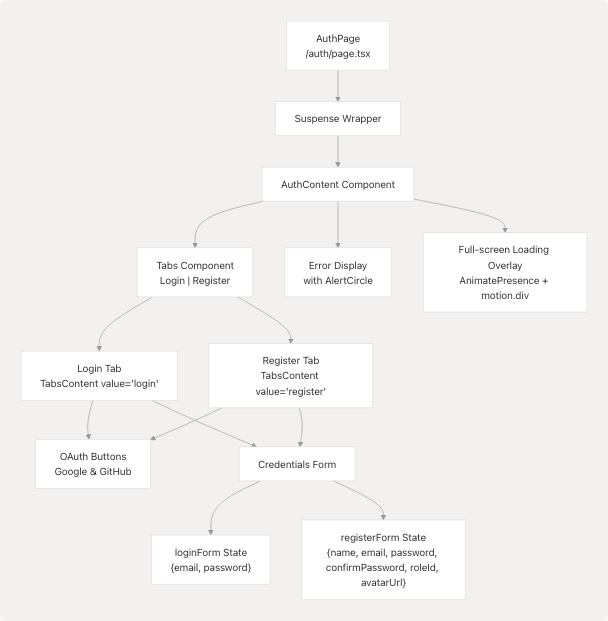
Diagram: Authentication Page Component Hierarchy
The page uses URL query parameters to control the default tab: ?tab=register opens the registration tab, otherwise it defaults to login frontend/app/auth/page.tsx49-50
Sources: frontend/app/auth/page.tsx39-903
Credentials Login Flow
The credentials login flow uses NextAuth's signIn function with the credentials provider:
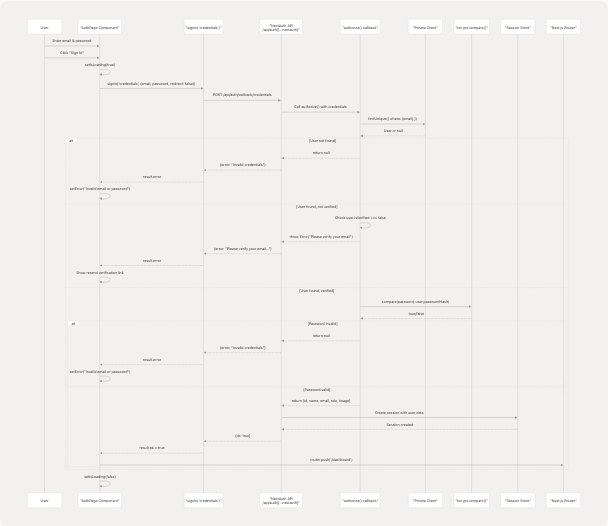
Diagram: Credentials Login Sequence
The handleLogin function implements this flow frontend/app/auth/page.tsx151-186:
- Form Submission: User submits email and password
- NextAuth Call:
signIn('credentials', {email, password, redirect: false}) - Authorize Callback: NextAuth calls the
authorize()function configured in[...nextauth]/route.ts - User Lookup: Database query to find user by email
- Verification Check: If user exists but
isVerifiedis false, throw error - Password Validation: Use bcrypt to compare passwords
- Session Creation: On success, NextAuth creates session with JWT
- Redirect: Client-side redirect to
/dashboard
Email Verification Gate: The login process specifically checks for unverified users frontend/app/auth/page.tsx163-177 and displays a link to resend verification email instead of logging them in.
Sources: frontend/app/auth/page.tsx151-186
OAuth Login Flow
Both Google and GitHub OAuth follow the same flow pattern through NextAuth:
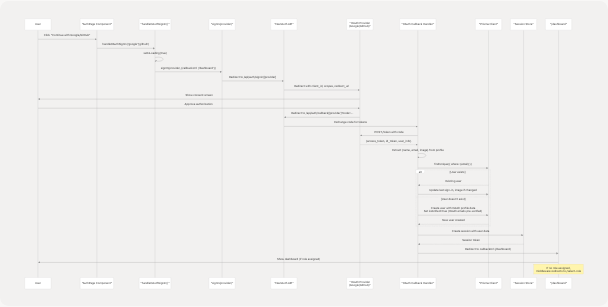
Diagram: OAuth Login Sequence
OAuth Button Implementation
The OAuth buttons are rendered identically in both login and register tabs frontend/app/auth/page.tsx423-467:
// Google OAuth Button
<Button
  onClick={() => handleOAuthSignIn("google")}
  disabled={isLoading}
  type="button"
  className="w-full h-12 bg-white hover:bg-gray-50 text-gray-900..."
>
  {isLoading ? <Loader /> : <GoogleSVGIcon />}
  Continue with Google
</Button>

// GitHub OAuth Button
<Button
  onClick={() => handleOAuthSignIn("github")}
  disabled={isLoading}
  type="button"
  className="w-full h-12 bg-[#24292F] hover:bg-[#1C2128]..."
>
  {isLoading ? <Loader /> : <Github className="h-5 w-5" />}
  Continue with GitHub
</Button>
The handleOAuthSignIn function frontend/app/auth/page.tsx145-149 simply calls NextAuth's signIn with the provider name:
const handleOAuthSignIn = async (provider: string) => {
  setIsLoading(true);
  await signIn(provider, { callbackUrl: "/dashboard" });
  setIsLoading(false);
};
OAuth vs Credentials Differences
| Aspect | Credentials | OAuth |
|---|---|---|
| User Creation | Manual registration required | Auto-created on first sign-in |
| Email Verification | Required, enforced at login | Not required (provider verified) |
| Password Storage | passwordHash field populated |
passwordHash is NULL |
| Profile Image | Optional, user-provided URL | Automatically from OAuth profile |
| Role Assignment | Required during registration | Deferred to /select-role page |
OAuth users are automatically marked as verified (isVerified = true) because OAuth providers have already verified the email address.
Sources: frontend/app/auth/page.tsx145-149 frontend/app/auth/page.tsx423-467 frontend/app/auth/page.tsx593-637
NextAuth Session Flow
After successful authentication (credentials or OAuth), NextAuth creates a session:
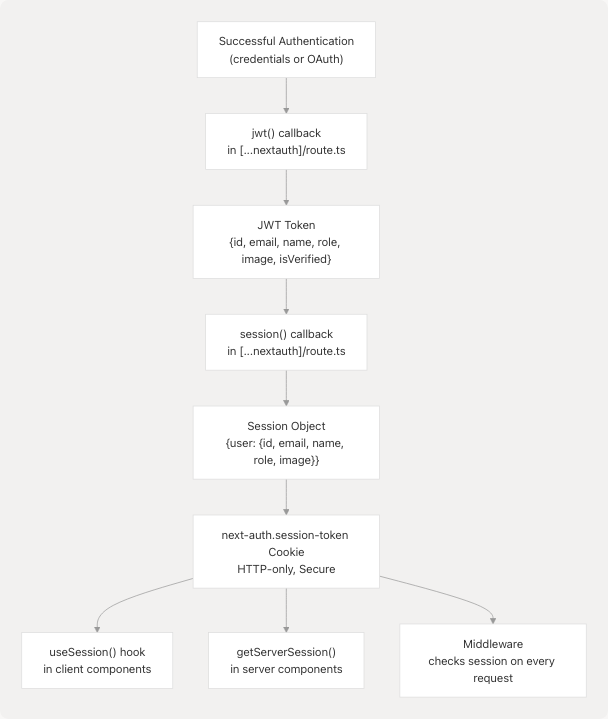
Diagram: NextAuth Session Creation and Access
The session object contains:
user.id: Database user IDuser.email: User's emailuser.name: User's nameuser.role: Role name (e.g., "Seeker", "Recruiter")user.image: Avatar URLuser.isVerified: Boolean indicating email verification status
Client components access the session using the useSession() hook frontend/app/auth/page.tsx40:
const { data: session, status } = useSession();
The session status can be:
"loading": Session is being fetched"authenticated": User is logged in"unauthenticated": No session exists
Sources: frontend/app/auth/page.tsx40 frontend/app/auth/page.tsx276-290
Login Page Session Redirect
The authentication page implements automatic redirection if a session already exists frontend/app/auth/page.tsx118-122:
useEffect(() => {
  if (session) {
    router.push("/dashboard");
  }
}, [session, router]);
This prevents logged-in users from accessing the login page. The page shows different states based on session status:
| Status | Display |
|---|---|
"loading" |
"Loading authentication..." message |
| Authenticated | "Redirecting to dashboard..." message + redirect |
| Unauthenticated | Show login/register tabs |
Sources: frontend/app/auth/page.tsx118-122 frontend/app/auth/page.tsx276-290
Email Verification Enforcement
For credentials-based login, email verification is strictly enforced:
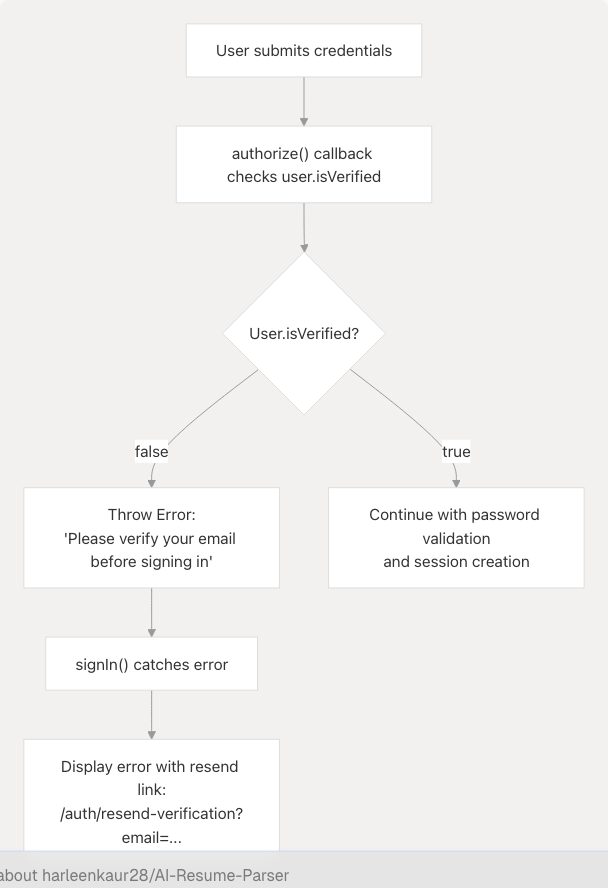
Diagram: Email Verification Check During Login
The error handling in handleLogin specifically detects verification errors frontend/app/auth/page.tsx163-177:
if (result?.error) {
  // Check if error is related to email verification
  if (result.error.includes("verify your email")) {
    setError(
      <div>
        Please verify your email before signing in.{" "}
        <Link
          href={`/auth/resend-verification?email=${encodeURIComponent(loginForm.email)}`}
          className="text-[#76ABAE] hover:underline font-medium"
        >
          Resend verification email
        </Link>
      </div>
    );
  } else {
    setError("Invalid email or password");
  }
}
The error message includes a clickable link to resend the verification email, pre-populating the user's email address.
Sources: frontend/app/auth/page.tsx163-177
URL Error Parameters
The authentication page handles error states passed via URL parameters frontend/app/auth/page.tsx124-143:
useEffect(() => {
  const errorParam = searchParams.get("error");
  if (errorParam === "unverified") {
    const emailParam = searchParams.get("email");
    setError(
      <div>
        Please verify your email before signing in.{" "}
        <Link
          href={`/auth/resend-verification${
            emailParam ? `?email=${encodeURIComponent(emailParam)}` : ""
          }`}
          className="text-[#76ABAE] hover:underline font-medium"
        >
          Resend verification email
        </Link>
      </div>
    );
  }
}, [searchParams]);
This allows middleware or other parts of the system to redirect to /auth?error=unverified&email=... to inform users they need to verify their email.
Sources: frontend/app/auth/page.tsx124-143
Loading States and UX
The authentication page implements multiple loading states for optimal user experience:
Initial Page Load
A full-screen loader with pulse animation frontend/app/auth/page.tsx294-308:
<AnimatePresence>
  {isPageLoading && (
    <motion.div
      initial={{ opacity: 1 }}
      exit={{ opacity: 0 }}
      className="fixed inset-0 bg-gradient-to-br from-[#222831] via-[#31363F] to-[#222831]
                 flex items-center justify-center z-50"
    >
      <Loader variant="pulse" size="xl" text="Loading authentication..." />
    </motion.div>
  )}
</AnimatePresence>
Authentication Request Loading
A full-screen overlay with backdrop blur during login/OAuth frontend/app/auth/page.tsx311-342:
<AnimatePresence>
  {isLoading && (
    <motion.div
      initial={{ opacity: 0 }}
      animate={{ opacity: 1 }}
      exit={{ opacity: 0 }}
      className="fixed inset-0 bg-black/50 backdrop-blur-md z-50 flex items-center justify-center"
    >
      <motion.div className="bg-white/10 backdrop-blur-lg rounded-3xl p-10 border border-white/20">
        <Loader variant="pulse" size="xl" className="text-[#76ABAE]" />
        <h3 className="text-[#EEEEEE] font-semibold text-xl mb-3">
          Processing Authentication
        </h3>
        <p className="text-[#EEEEEE]/70 text-sm leading-relaxed">
          Please wait while we authenticate your request...
        </p>
        <div className="mt-6 flex justify-center space-x-2">
          <div className="w-2 h-2 bg-[#76ABAE] rounded-full animate-pulse"></div>
          <div className="w-2 h-2 bg-[#76ABAE] rounded-full animate-pulse delay-75"></div>
          <div className="w-2 h-2 bg-[#76ABAE] rounded-full animate-pulse delay-150"></div>
        </div>
      </motion.div>
    </motion.div>
  )}
</AnimatePresence>
Both OAuth buttons and the credentials form submit button are disabled during loading to prevent duplicate submissions.
Sources: frontend/app/auth/page.tsx294-342 frontend/app/auth/page.tsx426-427 frontend/app/auth/page.tsx570
Form Validation
Login Form Validation
The login form implements basic HTML5 validation frontend/app/auth/page.tsx481-575:
- Email field:
type="email"andrequired - Password field:
type="password"andrequired - Additional validation happens server-side in the authorize callback
Password Visibility Toggle
Both forms include password visibility toggles frontend/app/auth/page.tsx531-542:
<button
  type="button"
  onClick={() => setShowPassword(!showPassword)}
  className="absolute right-3 top-1/2 -translate-y-1/2 text-[#76ABAE] hover:text-[#EEEEEE]
             transition-colors"
>
  {showPassword ? <EyeOff className="h-4 w-4" /> : <Eye className="h-4 w-4" />}
</button>
The password input's type attribute switches between "password" and "text" based on the showPassword state.
Sources: frontend/app/auth/page.tsx519-542 frontend/app/auth/page.tsx43-44
Error Display Component
Errors are displayed in a consistent banner format frontend/app/auth/page.tsx393-409:
{error && (
  <motion.div
    initial={{ opacity: 0, y: -10 }}
    animate={{ opacity: 1, y: 0 }}
    className={`mb-6 p-4 rounded-xl backdrop-blur-lg border text-sm ${
      typeof error === "string" && error.includes("Registration Successful")
        ? "bg-green-500/10 border-green-500/30 text-green-200"
        : "bg-red-500/10 border-red-500/30 text-red-200"
    }`}
  >
    <div className="flex items-start space-x-2">
      <AlertCircle className="h-4 w-4 mt-0.5 flex-shrink-0" />
      <div>{error}</div>
    </div>
  </motion.div>
)}
The error state can be either a string or a React node, allowing for rich error messages with links (e.g., "Resend verification email" link).
Sources: frontend/app/auth/page.tsx393-409 frontend/app/auth/page.tsx46
Login Flow Summary
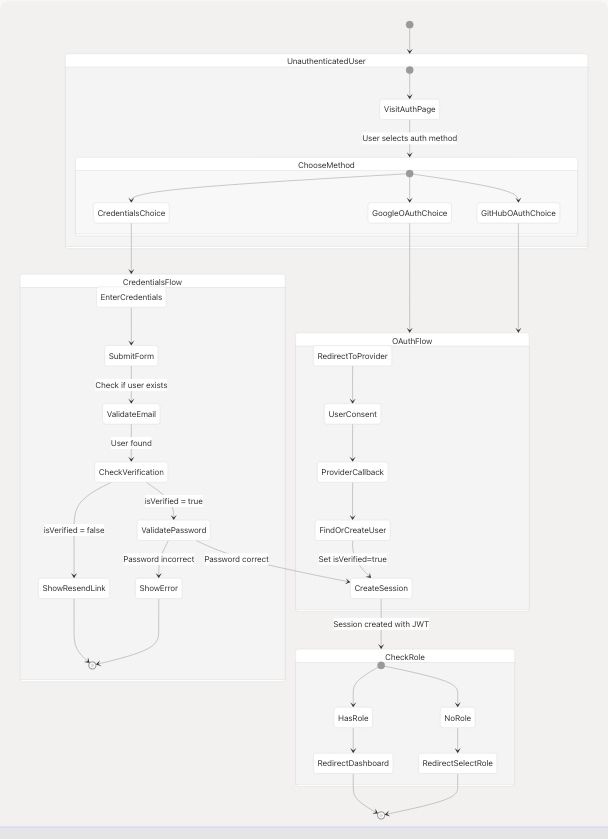
Diagram: Complete Login State Machine
This state machine shows all possible paths through the login system, including the role check that happens after session creation (handled by middleware, see Middleware & Route Protection).
Sources: frontend/app/auth/page.tsx1-929
Component File Structure
frontend/app/auth/
├── page.tsx                    # Main auth page (login/register tabs)
├── verify-email/
│   └── page.tsx               # Email verification handler
├── resend-verification/
│   └── page.tsx               # Resend verification email
├── forgot-password/
│   └── page.tsx               # Request password reset
└── reset-password/
    └── page.tsx               # Reset password with token

frontend/app/api/auth/
├── [...nextauth]/
│   └── route.ts               # NextAuth configuration (credentials & OAuth)
├── register/
│   └── route.ts               # Registration endpoint
├── verify-email/
│   └── route.ts               # Email verification endpoint
├── resend-verification/
│   └── route.ts               # Resend verification endpoint
├── reset-password/
│   └── route.ts               # Password reset request endpoint
└── confirm-reset/
    └── route.ts               # Password reset confirmation endpoint
The main authentication page handles both login and registration, with OAuth integration shared between both flows. Related authentication features (email verification, password reset) are organized in separate subdirectories.
Sources: frontend/app/auth/page.tsx1-929