Password Reset Flow
Purpose and Scope
This document describes the password reset flow for users who have forgotten their credentials. The system implements a secure token-based password reset mechanism that involves email verification, time-limited tokens, and one-time use validation.
This page covers the complete journey from requesting a password reset to successfully updating credentials. For initial user registration and email verification, see Registration & Email Verification. For standard login procedures, see Login & OAuth.
Overview
The password reset flow is a two-step process:
- Request Reset: User provides their email address and receives a reset link via email
- Confirm Reset: User clicks the email link and sets a new password
The system uses cryptographically secure tokens that expire after 1 hour and can only be used once. Only users with email/password authentication can reset passwords; OAuth users (Google, GitHub) are blocked from this flow since they authenticate through external providers.
System Architecture
High-Level Component Diagram
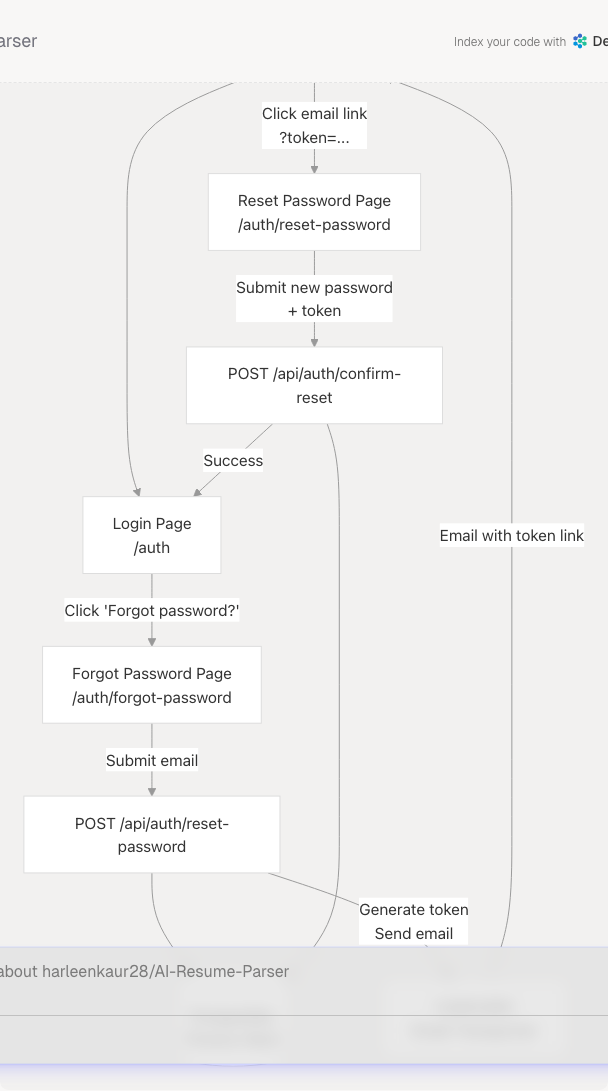
Complete Password Reset Sequence
End-to-End Flow Diagram
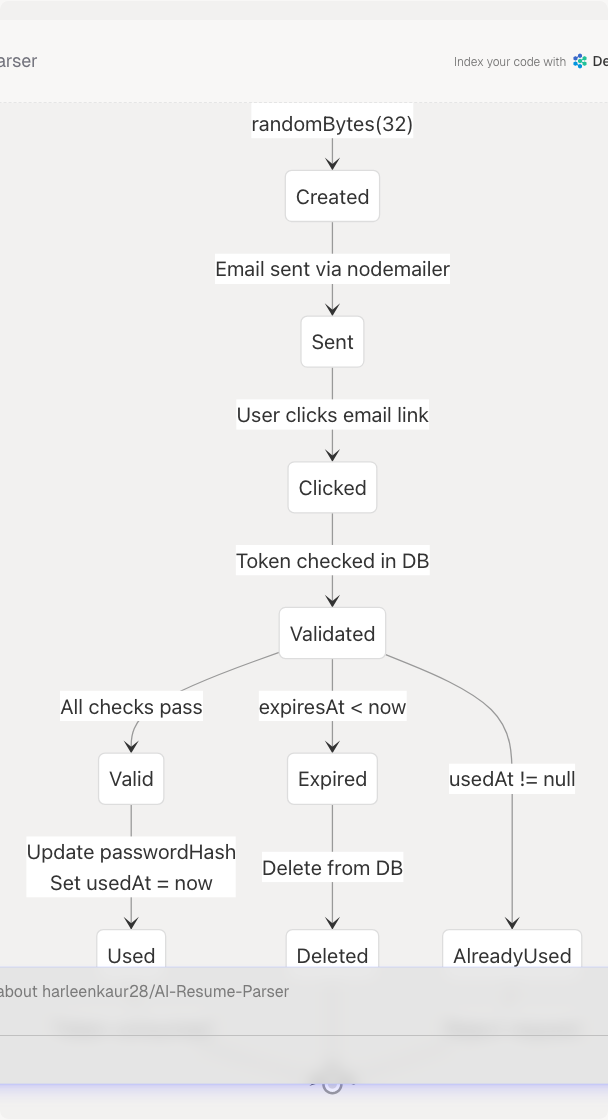
Token Lifecycle State Machine
Password Reset Token States
Frontend Pages
Forgot Password Page (/auth/forgot-password)
The forgot password page is a standalone form where users request a password reset by entering their email address.
Component: ForgotPasswordPage at frontend/app/auth/forgot-password/page.tsx19-237
Key Features:
- Email input with validation
- Loading states with animated overlay
- Success/error message display
- Link back to login page
State Management:
| State Variable | Type | Purpose |
|---|---|---|
isPageLoading |
boolean |
Initial page load animation (600ms) |
email |
string |
User's email input |
isLoading |
boolean |
Request in progress |
error |
`string | null` |
success |
`string | null` |
Form Submission Flow:
// frontend/app/auth/forgot-password/page.tsx:32-60
const handleSubmit = async (e: React.FormEvent) => {
  e.preventDefault();
  // Validate email not empty
  // POST to /api/auth/reset-password
  // Display success or error message
};
Reset Password Page (/auth/reset-password)
The reset password page allows users to set a new password using the token from their email.
Component: ResetPasswordContent at frontend/app/auth/reset-password/page.tsx27-310
Key Features:
- Token extraction from URL query parameter
- Dual password inputs (new + confirm)
- Password visibility toggles
- Validation (6+ characters, passwords match)
- Auto-redirect to login on success
State Management:
| State Variable | Type | Purpose |
|---|---|---|
token |
`string | null` |
password |
string |
New password input |
confirmPassword |
string |
Password confirmation input |
showPassword |
boolean |
Toggle password visibility |
showConfirmPassword |
boolean |
Toggle confirm password visibility |
isLoading |
boolean |
Request in progress |
error |
`string | null` |
success |
`string | null` |
Token Extraction:
// frontend/app/auth/reset-password/page.tsx:46-55
useEffect(() => {
  const tokenFromUrl = searchParams.get("token");
  if (tokenFromUrl) {
    setToken(tokenFromUrl);
  } else {
    setError("No reset token found...");
  }
}, [searchParams]);
Validation and Submission:
// frontend/app/auth/reset-password/page.tsx:57-97
const handleSubmit = async (e: React.FormEvent) => {
  // Check token exists
  // Validate passwords match
  // Validate password length >= 6
  // POST to /api/auth/confirm-reset
  // On success: setTimeout redirect to /auth
};
Backend API Routes
POST /api/auth/reset-password
Initiates the password reset process by creating a token and sending an email.
Route Handler: frontend/app/api/auth/reset-password/route.ts59-134
Request Schema:
// frontend/app/api/auth/reset-password/route.ts:7-9
const resetPasswordSchema = z.object({
  email: z.string().email("Invalid email format"),
});
Request Body:
{
  "email": "user@example.com"
}
Processing Steps:
- Validate Email: Parse with Zod schema
- Find User: Query
prisma.user.findUnique({ where: { email } }) - Security Check: Return generic success message if user not found (prevent email enumeration)
- OAuth Check: Return error if
user.passwordHashis null (OAuth users can't reset) - Clean Old Tokens: Delete existing tokens with
prisma.passwordResetToken.deleteMany({ where: { userId } }) - Generate Token: Create 32-byte hex token with
randomBytes(32).toString("hex") - Set Expiry: Token expires in 1 hour (
Date.now() + 60 * 60 * 1000) - Store Token: Insert into database with
prisma.passwordResetToken.create() - Send Email: Call
sendPasswordResetEmail()with token - Return Success: Generic message for security
Response (Success):
{
  "message": "If an account with this email exists, a password reset link has been sent."
}
Response (OAuth User):
{
  "error": "This account was created with OAuth and doesn't have a password to reset..."
}
POST /api/auth/confirm-reset
Validates the reset token and updates the user's password.
Route Handler: frontend/app/api/auth/confirm-reset/route.ts11-88
Request Schema:
// frontend/app/api/auth/confirm-reset/route.ts:6-9
const confirmResetSchema = z.object({
  token: z.string().min(1, "Token is required"),
  password: z.string().min(6, "Password must be at least 6 characters"),
});
Request Body:
{
  "token": "abc123...",
  "password": "newSecurePassword123"
}
Processing Steps:
- Validate Input: Parse with Zod schema
- Find Token: Query
prisma.passwordResetToken.findUnique({ where: { token }, include: { user: true } }) - Check Existence: Return error if token not found
- Check Expiry: Compare
resetToken.expiresAt < new Date(), delete if expired - Check Usage: Reject if
resetToken.usedAt !== null - Hash Password: Generate bcrypt hash with
hash(password, 12) - Update Database: Use transaction to:
- Update
user.passwordHash - Set
passwordResetToken.usedAt = new Date()
- Update
- Return Success: User can now login
Response (Success):
{
  "success": true,
  "message": "Password reset successfully! You can now sign in with your new password."
}
Response (Invalid Token):
{
  "error": "Invalid or expired reset token"
}
Response (Already Used):
{
  "error": "This reset token has already been used. Please request a new password reset if needed."
}
Email Service
Email Configuration
The system uses nodemailer to send password reset emails via SMTP.
Transporter Creation:
// frontend/app/api/auth/reset-password/route.ts:12-22
const createTransporter = () => {
  return nodemailer.createTransport({
    host: process.env.EMAIL_SERVER_HOST,
    port: Number(process.env.EMAIL_SERVER_PORT) || 587,
    secure: false, // Use TLS
    auth: {
      user: process.env.EMAIL_SERVER_USER,
      pass: process.env.EMAIL_SERVER_PASSWORD,
    },
  });
};
Environment Variables Required:
| Variable | Purpose |
|---|---|
EMAIL_SERVER_HOST |
SMTP server hostname |
EMAIL_SERVER_PORT |
SMTP port (default: 587) |
EMAIL_SERVER_USER |
SMTP authentication username |
EMAIL_SERVER_PASSWORD |
SMTP authentication password |
EMAIL_FROM |
Sender email address |
NEXTAUTH_URL |
Base URL for constructing reset links |
Password Reset Email Template
The reset email contains a clickable button and a fallback URL.
Email Function: frontend/app/api/auth/reset-password/route.ts24-57
Reset URL Format:
https://{NEXTAUTH_URL}/auth/reset-password?token={32-byte-hex-token}
Email Content Structure:
- Subject: "Reset your password - TalentSync AI"
- Greeting: Personalized with user's name
- Call to Action: Blue button with reset link
- Fallback: Plain text URL for copying
- Security Notice: Token expires in 1 hour
- Footer: Branding text
HTML Template (abbreviated):
<div style="max-width: 600px; margin: 0 auto;">
  <h2>Reset Your Password</h2>
  <div style="background: #f8f9fa; padding: 20px;">
    <p>Hello {name},</p>
    <p>To reset your password, click the button below:</p>
    <a href="{resetUrl}" style="background: #76ABAE; color: white; padding: 12px 30px;">
      Reset Password
    </a>
    <p>This link will expire in 1 hour.</p>
  </div>
</div>
Database Schema
PasswordResetToken Model
The PasswordResetToken table stores temporary tokens for password resets.
Prisma Model Structure:
| Field | Type | Constraints | Purpose |
|---|---|---|---|
id |
String |
Primary Key, UUID | Unique identifier |
token |
String |
Unique, indexed | The reset token (32-byte hex) |
expiresAt |
DateTime |
Required | Expiration timestamp (1 hour) |
usedAt |
DateTime? |
Optional | When token was consumed (null = unused) |
userId |
String |
Foreign Key | References User.id |
user |
User |
Relation | Associated user record |
createdAt |
DateTime |
Auto-generated | When token was created |
Token Generation:
// frontend/app/api/auth/reset-password/route.ts:91-100
const token = randomBytes(32).toString("hex");
const expiresAt = new Date(Date.now() + 60 * 60 * 1000); // 1 hour

await prisma.passwordResetToken.create({
  data: {
    token,
    expiresAt,
    userId: user.id,
  },
});
Token Validation:
// frontend/app/api/auth/confirm-reset/route.ts:17-48
const resetToken = await prisma.passwordResetToken.findUnique({
  where: { token },
  include: { user: true },
});

// Check: exists, not expired, not used
if (!resetToken) return error("Invalid or expired");
if (resetToken.expiresAt < new Date()) return error("Expired");
if (resetToken.usedAt) return error("Already used");
Security Features
Token Security Measures
| Feature | Implementation | Purpose |
|---|---|---|
| Cryptographic Randomness | randomBytes(32) from Node.js crypto |
Prevents token prediction |
| One-Time Use | usedAt timestamp |
Prevents replay attacks |
| Time Expiration | 1-hour TTL | Limits attack window |
| Token Cleanup | Delete old tokens before creating new | Prevents token accumulation |
| Email Enumeration Protection | Generic success message | Doesn't reveal if email exists |
| OAuth Prevention | Check passwordHash field |
Blocks OAuth users from resetting |
| Password Hashing | bcrypt with 12 rounds | Secure password storage |
| Database Transaction | Atomic password + token update | Ensures consistency |
Preventing Email Enumeration:
// frontend/app/api/auth/reset-password/route.ts:69-75
if (!user) {
  // Don't reveal whether the email exists or not for security
  return NextResponse.json(
    { message: "If an account with this email exists, a password reset link has been sent." },
    { status: 200 }
  );
}
Preventing OAuth Account Reset:
// frontend/app/api/auth/reset-password/route.ts:77-83
if (!user.passwordHash) {
  return NextResponse.json(
    { error: "This account was created with OAuth and doesn't have a password to reset..." },
    { status: 400 }
  );
}
One-Time Token Usage:
// frontend/app/api/auth/confirm-reset/route.ts:42-48
if (resetToken.usedAt) {
  return NextResponse.json(
    { error: "This reset token has already been used..." },
    { status: 400 }
  );
}
UI/UX Features
Loading States
Both pages implement sophisticated loading overlays during async operations.
Page Load Animation:
- 600ms initial fade-in with
Loadercomponent - Uses
framer-motionfor smooth transitions - Prevents layout shift
Request Loading Overlay:
// frontend/app/auth/forgot-password/page.tsx:81-116
<AnimatePresence>
  {isLoading && (
    <motion.div className="fixed inset-0 bg-black/50 backdrop-blur-md z-50">
      <motion.div className="bg-white/10 backdrop-blur-lg rounded-3xl p-10">
        <Loader variant="pulse" size="xl" className="text-[#76ABAE]" />
        <h3>Sending Reset Link</h3>
        <p>We're sending a password reset link to your email address...</p>
        {/* Animated dots */}
      </motion.div>
    </motion.div>
  )}
</AnimatePresence>
Loading Variants:
- Forgot Password: "Sending Reset Link"
- Reset Password: "Resetting Password"
Error Handling
Both pages display contextual error messages with clear visual feedback.
Error Display Pattern:
// frontend/app/auth/forgot-password/page.tsx:160-165
{error && (
  <div className="mb-4 p-3 bg-red-500/20 border border-red-500/30 rounded-lg text-red-200 text-sm flex items-center space-x-2">
    <AlertCircle className="h-4 w-4 flex-shrink-0" />
    <span>{error}</span>
  </div>
)}
Common Error Messages:
| Error | Source | Message |
|---|---|---|
| Empty email | Frontend validation | "Please enter your email address." |
| OAuth account | Backend | "This account was created with OAuth..." |
| No token in URL | Frontend | "No reset token found in the URL..." |
| Token expired | Backend | "Reset token has expired. Please request a new password reset." |
| Token used | Backend | "This reset token has already been used..." |
| Passwords mismatch | Frontend | "Passwords do not match." |
| Password too short | Frontend | "Password must be at least 6 characters long." |
Success States
Success messages are displayed with green styling and provide next actions.
Forgot Password Success:
// frontend/app/auth/forgot-password/page.tsx:145-149
{success ? (
  <CheckCircle className="mx-auto h-10 w-10 text-green-400 mb-4" />
) : (
  <Send className="mx-auto h-10 w-10 text-[#76ABAE] mb-4" />
)}
Reset Password Success:
- Displays success message
- Shows "Go to Login" button
- Auto-redirects after 3 seconds with
setTimeout(() => router.push('/auth'), 3000)
Secondary Actions:
- "Send Another Email" button on forgot password page
- "Request New Reset Link" button if token is invalid
Integration with Auth System
Login Page Integration
The forgot password flow is initiated from the main authentication page.
Entry Point: frontend/app/auth/page.tsx559-564
<Link
  href="/auth/forgot-password"
  className="text-sm text-[#76ABAE] hover:text-[#76ABAE]/80 transition-colors font-medium"
>
  Forgot password?
</Link>
Position: Located in the login form, below the password field and next to "Remember me" checkbox.
Navigation Flow
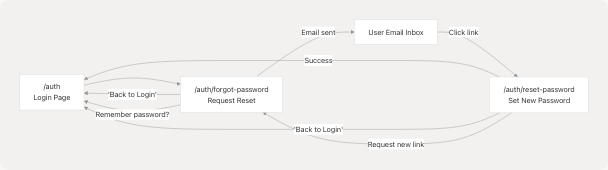
Navigation Links:
| From Page | To Page | Trigger |
|---|---|---|
| Login → Forgot Password | /auth → /auth/forgot-password |
"Forgot password?" link |
| Forgot Password → Login | /auth/forgot-password → /auth |
"Back to Login" button |
| Forgot Password → Login | /auth/forgot-password → /auth |
"Sign in here" link |
| Reset Password → Login | /auth/reset-password → /auth |
Auto-redirect after success |
| Reset Password → Login | /auth/reset-password → /auth |
"Back to Login" button |
| Reset Password → Forgot Password | /auth/reset-password → /auth/forgot-password |
"Request New Reset Link" |
Error Recovery Paths
Invalid or Expired Token
If a user's token is invalid or expired, they can request a new one.
Flow:
- User clicks old reset link
/auth/reset-password?token=...detects invalid token- Error message displayed: "Invalid or expired reset token"
- "Request New Reset Link" button redirects to
/auth/forgot-password - User re-enters email to get fresh token
Code: frontend/app/auth/reset-password/page.tsx295-301
Email Not Received
If the user doesn't receive the reset email, they can resend it.
Options:
- "Send Another Email" button on success screen (forgot password page)
- Navigate back to
/auth/forgot-passwordand re-submit - Check spam folder (mentioned in email template)
Implementation: frontend/app/auth/forgot-password/page.tsx176-187
OAuth User Attempts Reset
OAuth users (Google, GitHub) don't have passwords and cannot use this flow.
Protection:
// frontend/app/api/auth/reset-password/route.ts:78-83
if (!user.passwordHash) {
  return NextResponse.json(
    { error: "This account was created with OAuth and doesn't have a password to reset. Please sign in with your OAuth provider." },
    { status: 400 }
  );
}
User Experience: Error message clearly explains to use their OAuth provider instead.
Testing Considerations
Test Scenarios
| Scenario | Expected Behavior |
|---|---|
| Valid email, valid token | Password successfully reset |
| Non-existent email | Generic success message (no email sent) |
| OAuth user email | Error: use OAuth provider |
| Token expired (>1 hour) | Error: token expired, deleted from DB |
| Token already used | Error: token already used |
| Passwords don't match | Frontend validation error |
| Password < 6 characters | Frontend validation error |
| Token in URL missing | Error: no token found |
| Email sending fails | Backend logs error, user sees success |
Related Components
Shared UI Components
Loader: Loading spinner/pulse animations at frontend/app/auth/forgot-password/page.tsx17Button: Styled button component from UI libraryInput: Form input with consistent stylingCard: Container with glassmorphism effectLabel: Form labels with accessibility
Icons Used
ArrowLeft: Back navigation buttonsMail: Email input field iconSend: Forgot password page iconLock: Password input field iconsEye/EyeOff: Password visibility togglesAlertCircle: Error message indicatorsCheckCircle: Success message indicators
Summary
The password reset flow implements industry-standard security practices:
- Token-based authentication with cryptographic randomness
- Time-limited tokens (1 hour expiration)
- One-time use enforcement via
usedAttracking - Email verification via nodemailer SMTP
- OAuth protection prevents password reset for external accounts
- Email enumeration prevention with generic messages
- Atomic database updates using Prisma transactions
- Clear user feedback with loading states, errors, and success messages
The implementation uses modern React patterns (hooks, Suspense), TypeScript for type safety, Zod for validation, and framer-motion for smooth animations.