Resume Upload & Analysis
Purpose and Scope
This page documents the resume upload and initial analysis functionality in the TalentSync frontend application. It covers the file upload user interface, the analysis request flow, results display, and integration with other dashboard features.
This page focuses on the initial upload and summary analysis. For detailed analysis visualization, see Detailed Analysis View. For tips generation based on analysis, see Career Tips. For the backend resume parsing and ML classification, see Resume Analysis Service.
Component Architecture
The resume upload and analysis feature is implemented through two primary components:
FileUpload Component
The main component used throughout the application, located at frontend/components/file-upload.tsx1-468 This component provides a comprehensive drag-and-drop interface with the following capabilities:
| Feature | Description | Implementation |
|---|---|---|
| File Selection | Drag-and-drop or click to select | react-dropzone library |
| File Validation | Accept only PDF, TXT, MD, DOCX | accept prop configuration |
| Custom Naming | User-defined resume identifier | State management with customName |
| Central Repository | Optional visibility toggle | showInCentral checkbox |
| Analysis Results | Summary display with actions | Conditional rendering based on analysisResult |
UploadResume Component
A simpler alternative implementation at frontend/components/upload-resume.tsx1-185 providing basic upload functionality with callbacks for success/error handling. This component is used in contexts where minimal UI complexity is required.
Sources: frontend/components/file-upload.tsx1-468 frontend/components/upload-resume.tsx1-185
System Architecture Diagram
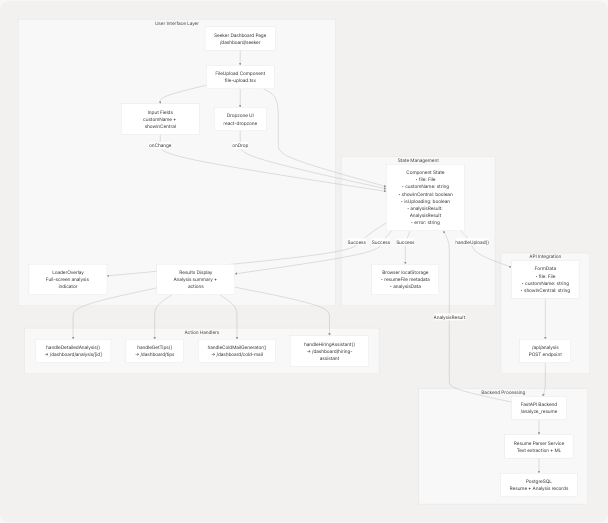
Sources: frontend/components/file-upload.tsx64-133 frontend/app/dashboard/seeker/page.tsx20-196
Upload Flow Sequence
The resume upload and analysis process follows a multi-stage sequence with clear user feedback at each step:
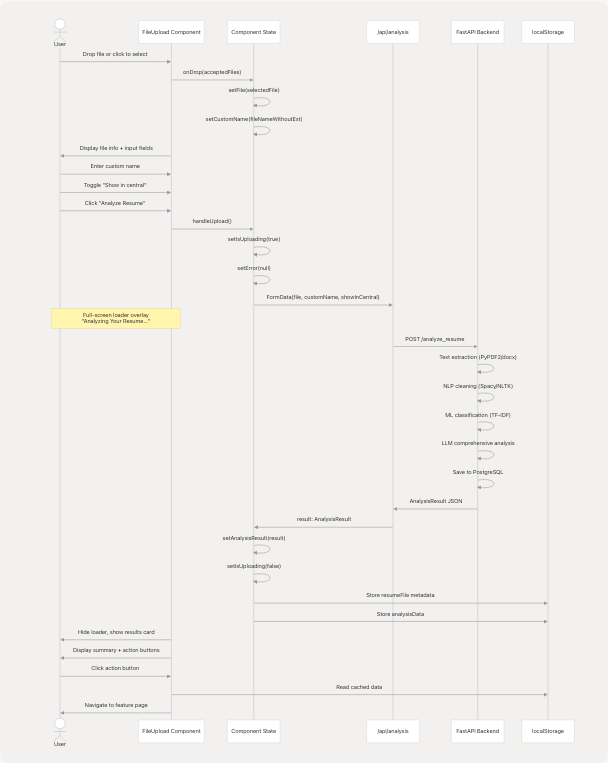
Sources: frontend/components/file-upload.tsx75-132 frontend/components/file-upload.tsx99-132
File Upload Implementation
Dropzone Configuration
The file upload component uses react-dropzone for drag-and-drop functionality with specific file type restrictions:
// Configuration at frontend/components/file-upload.tsx:87-97
const { getRootProps, getInputProps, isDragActive } = useDropzone({
    onDrop,
    accept: {
        "application/pdf": [".pdf"],
        "text/plain": [".txt"],
        "text/markdown": [".md"],
        "application/vnd.openxmlformats-officedocument.wordprocessingml.document": [".docx"]
    },
    maxFiles: 1
});
File Selection Handler
When a file is selected, the component automatically populates the custom name field:
frontend/components/file-upload.tsx75-85
| Step | Action | State Update |
|---|---|---|
| 1 | File selected via drag-and-drop or click | setFile(selectedFile) |
| 2 | Extract filename without extension | nameWithoutExt = file.name.replace(/\.[^/.]+$/, "") |
| 3 | Populate custom name field | setCustomName(nameWithoutExt) |
| 4 | Clear previous errors/results | setError(null), setAnalysisResult(null) |
Sources: frontend/components/file-upload.tsx75-85
API Request Construction
FormData Payload
The upload handler constructs a FormData object containing the file and metadata:
frontend/components/file-upload.tsx99-114
const formData = new FormData();
formData.append("file", file);                              // Resume file (PDF/DOCX/TXT/MD)
formData.append("customName", customName.trim());          // User-defined name
formData.append("showInCentral", showInCentral.toString()); // Boolean as string
Request Execution
The component sends a POST request to the Next.js API route:
const response = await fetch(`/api/analysis`, {
    method: "POST",
    body: formData  // No Content-Type header - browser sets multipart/form-data
});
The /api/analysis route acts as a proxy, forwarding the request to the FastAPI backend at /analyze_resume endpoint.
Sources: frontend/components/file-upload.tsx106-114
Analysis Result Structure
AnalysisResult Interface
The backend returns a comprehensive analysis result with the following TypeScript interface:
frontend/components/file-upload.tsx22-58
interface AnalysisResult {
    success: boolean;
    message: string;
    data: {
        resumeId: string;                           // Database ID for navigation
        analysis: {
            id: string;
            name: string;                           // Extracted from resume
            email: string;                          // Extracted from resume
            contact?: string;                       // Optional phone number
            predictedField: string;                 // ML classification result
            skillsAnalysis: Array<{
                skill_name: string;
                percentage: number;                 // Proficiency score
            }>;
            recommendedRoles: string[];             // AI-suggested positions
            languages: Array<{
                language: string;
            }>;
            education: Array<{
                education_detail: string;
            }>;
            workExperience: Array<{
                role: string;
                company_and_duration: string;
                bullet_points: string[];
            }>;
            projects: Array<{
                title: string;
                technologies_used: string[];
                description: string;
            }>;
            uploadedAt: string;
        };
        cleanedText: string;                        // NLP-processed resume text
    };
}
Sources: frontend/components/file-upload.tsx22-58
Loading States and User Feedback
Full-Screen Analysis Overlay
During the analysis process, a full-screen animated overlay provides user feedback:
frontend/components/file-upload.tsx196-229
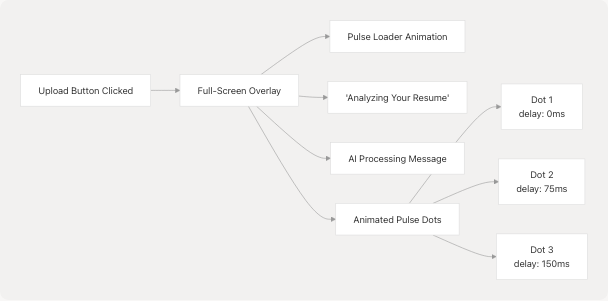
The overlay uses framer-motion for smooth entrance/exit animations:
- Initial opacity: 0
- Animate to opacity: 1
- Background:
bg-black/50 backdrop-blur-md - Z-index: 50 (above all other content)
Sources: frontend/components/file-upload.tsx196-229 frontend/components/ui/loader.tsx76-105
Results Display Component
Summary Card Layout
Upon successful analysis, the component displays a comprehensive summary card:
frontend/components/file-upload.tsx342-463

Sources: frontend/components/file-upload.tsx342-463
Cross-Feature Integration
LocalStorage Data Persistence
The component stores analysis data in localStorage to enable seamless transitions to related features:
frontend/components/file-upload.tsx154-172
Storage Schema
| Key | Data Structure | Purpose |
|---|---|---|
resumeFile |
{ name, size, type, lastModified } |
File metadata for re-upload or reference |
analysisData |
Full analysis object |
Pre-populate forms in other features |
Usage Pattern
// Store data when navigating to Cold Mail Generator
localStorage.setItem("resumeFile", JSON.stringify({
    name: file.name,
    size: file.size,
    type: file.type,
    lastModified: file.lastModified
}));
localStorage.setItem("analysisData", JSON.stringify(analysisResult.data.analysis));

// Navigate to feature
router.push("/dashboard/cold-mail");
Navigation Handlers
The component provides four navigation handlers that integrate with other dashboard features:
handleDetailedAnalysis()
frontend/components/file-upload.tsx134-139
Navigates to the comprehensive analysis view using the resume ID:
- Target:
/dashboard/analysis/${resumeId} - Data: Fetched from database via API
- See: Detailed Analysis View
handleGetTips()
frontend/components/file-upload.tsx141-152
Passes analysis data to the tips page via query parameters:
- Target:
/dashboard/tips?category=${jobCategory}&skills=${skills} - Data:
predictedFieldand comma-separatedskillsAnalysis - See: Career Tips page
handleColdMailGenerator()
frontend/components/file-upload.tsx154-172
Stores data in localStorage and navigates to cold mail feature:
- Target:
/dashboard/cold-mail - Data:
resumeFilemetadata +analysisData - See: Cold Mail Generator
handleHiringAssistant()
frontend/components/file-upload.tsx174-192
Stores data in localStorage and navigates to interview prep:
- Target:
/dashboard/hiring-assistant - Data:
resumeFilemetadata +analysisData - See: Hiring Assistant
Sources: frontend/components/file-upload.tsx134-192
Seeker Dashboard Integration
Page Layout
The FileUpload component is embedded in the Seeker Dashboard page at frontend/app/dashboard/seeker/page.tsx1-196 This page provides context and additional feature links around the upload component.

Animation Sequence
The page uses staggered framer-motion animations for visual polish:
| Element | Delay | Animation |
|---|---|---|
| Back Button | 0ms | x: -20 → 0, opacity: 0 → 1 |
| Main Header | 200ms | y: 20 → 0, opacity: 0 → 1 |
| Upload Component | 400ms | scale: 0.95 → 1, opacity: 0 → 1 |
| Features Grid | 600ms | y: 20 → 0, opacity: 0 → 1 |
| Additional Services | 800ms | y: 20 → 0, opacity: 0 → 1 |
Sources: frontend/app/dashboard/seeker/page.tsx48-189
Error Handling
Client-Side Validation
The component validates user input before submission:
frontend/components/file-upload.tsx99-100
if (!file || !customName.trim()) return; // Prevents empty submissions
The submit button is disabled when validation fails:
disabled={isUploading || !customName.trim()}
Server Error Display
If the API request fails, an error message is displayed with visual feedback:
frontend/components/file-upload.tsx127-131
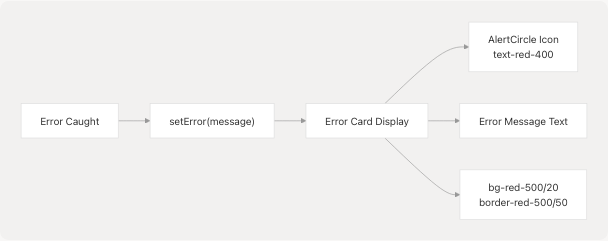
The error display at frontend/components/file-upload.tsx328-337 provides clear user feedback with red-themed styling and an alert icon.
Sources: frontend/components/file-upload.tsx99-100 frontend/components/file-upload.tsx127-131 frontend/components/file-upload.tsx328-337
Alternative Upload Component
Simplified UploadResume Component
The codebase includes a simpler upload component at frontend/components/upload-resume.tsx1-185 with callback-based architecture:
Key Differences
| Feature | FileUpload | UploadResume |
|---|---|---|
| UI Style | Drag-and-drop with react-dropzone |
Traditional file input |
| Results Display | Inline comprehensive summary | Callback to parent |
| Error Handling | Inline error display | Callback to parent |
| Navigation | Built-in action buttons | Parent controls navigation |
| Styling | Glassmorphism with backdrop-blur | Standard Bootstrap-style |
Usage Pattern
<UploadResume
    onSuccess={(result) => {
        // Parent handles success
        console.log(result);
    }}
    onError={(error) => {
        // Parent handles error
        console.error(error);
    }}
/>
This component is suitable for contexts where the parent component needs full control over the upload lifecycle and result handling.
Sources: frontend/components/upload-resume.tsx1-185
Performance Considerations
File Size Handling
While the component doesn't enforce explicit file size limits, the backend and API routes may have limits:
- Browser FormData automatically handles multipart encoding
- File size displayed in KB: frontend/components/file-upload.tsx273
- Large files (>5MB) may experience longer upload/processing times
Analysis Duration
The backend processing typically takes 4-8 seconds, consisting of:
- File upload (~1-2s depending on size)
- Text extraction (PDF/DOCX parsing)
- NLP cleaning and tokenization
- ML classification with TF-IDF vectorization
- LLM comprehensive analysis via Google Gemini
- Database persistence
The loading overlay provides continuous feedback during this period to maintain user engagement.
State Management Optimization
The component uses React state efficiently:
- Single
analysisResultstate for entire response - Conditional rendering prevents unnecessary re-renders
- LocalStorage writes are synchronous but small payloads
Sources: frontend/components/file-upload.tsx64-73
Database Persistence
Schema Changes
The application stores the raw resume text in the database rather than file URLs, as evidenced by the migration:
frontend/prisma/migrations/20250613172024_replace_file_url_with_raw_text/migration.sql1-13
This change enables:
- Full-text search capabilities
- Easier data processing without file system access
- Simplified backup and migration procedures
- Direct access to cleaned text for re-analysis
Data Models
The resume upload process creates two database records:
- Resume record with
rawTextfield containing cleaned resume content - Analysis record with comprehensive structured data
The resumeId returned in the response links these records for retrieval in the Detailed Analysis view.
Sources: frontend/prisma/migrations/20250613172024_replace_file_url_with_raw_text/migration.sql1-13